|
The SDK docs have moved to https://dev.palmsens.com/sdk. If you aren't automatically redirected please follow this link. |
Getting Started
Add SDK project to your solution
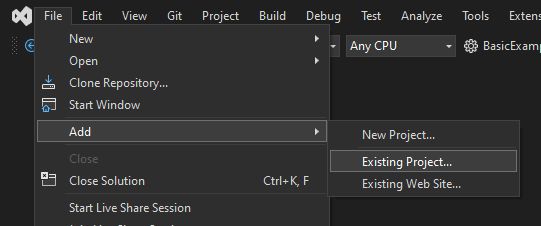
In Visual Studio, click on your solution and go to .
Navigate to the project (.csproj) you want to add, e.g. PSLibraries/PalmSens.Core.Simplified.WinForms/PalmSens.Core.Simplified.WinForms.csproj.
Add SDK references to the project
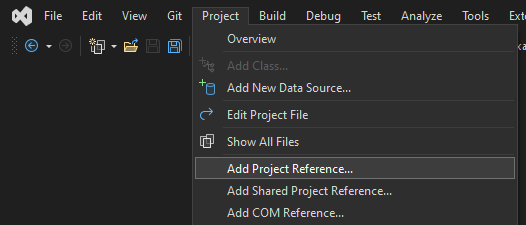
In Visual Studio, click on your project and go to .
Select the reference(s) you want to add, e.g. PalmSens.Core.Simplified.WinForms.
Reference external libraries (.dll files) by selecting them via the
'Browse' button and reference project files (.csproj) by xref#add-sdk-to-solution[adding them
to your solution] and referencing the project.
The PalmSens.Core.dll and PalmSens.Core.Windows.dll libraries should always be referenced.
If you use the simplified wrapper to control your devices, reference the PalmSens.Core.Simplified.csproj and PalmSens.Core.Simplified.WinForms.csproj should be referenced.
To use the plot helpers, reference the SDKPlot.csproj, SDKPlot.WinForms.csproj projects.
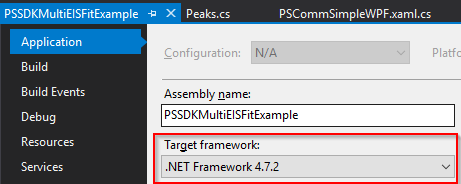
If your project does not build please make sure that: 1. You target .NET Framework 4.7.2 or higher 2. You use visual studio 2017 or higher 3. .NET standard 2.0 is available.
Add PSCommSimpleWinforms or PS component to your user interface
First, import the PalmSens.Core.Simplified.csproj and PalmSens.Core.Simplified.WinForms.csproj into your solution and build the PalmSens.Core.Simplified.WinForms project.
Then reference these projects in your project.
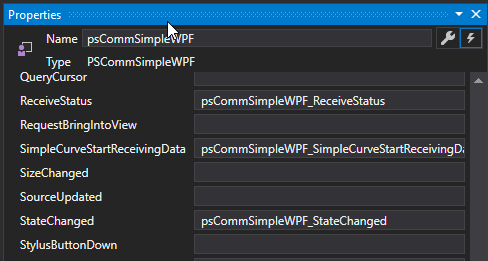
Next, go to the designer of your Main Form and look for the PSCommSimpleWPF user control in your toolbox.
Drag and drop this component on top of your Window.
If you would like to develop for a multi channel instrument use the PSMultiCommSimpleWPF user control instead.
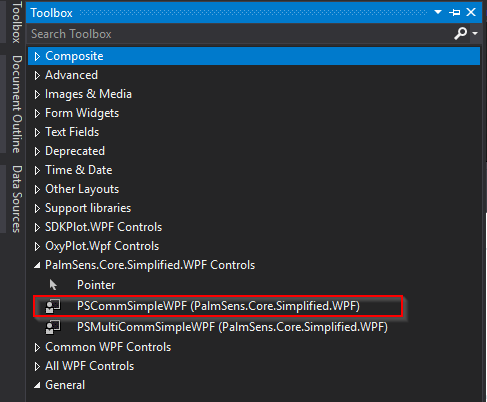
If you would like to develop for a multi channel instrument use the PSMultiCommSimpleWPF user control instead.

Compatible devices and firmware
The PalmSens SDK is based on PalmSens core version 5.12.
The table below lists the minimum supported firmwares versions and required drivers.
You can update the firmware using a recent version of PSTrace on a Windows PC See the chapter 'Updating firmware' in the PSTrace user manual for more information.
| Instrument | Firmware version | Windows drivers |
|---|---|---|
Nexus |
1.100 |
palmsens_cdc.inf (optional) [1] |
Palmsens1 |
4.4 |
PalmSens FTDI [1] |
Palmsens2 |
4.4 |
PalmSens FTDI [1] |
Palmsens3 |
2.8 |
PalmSens FTDI [1] |
Palmsens4 |
1.7 |
palmsens_cdc.inf (optional) [1] |
MultiPalmsens4 |
1.7 |
Generic FTDI [2] |
EmStat1 |
3.7 |
PalmSens FTDI [1] |
EmStat2 |
7.7 |
PalmSens FTDI [1] |
EmStat3 |
7.7 |
PalmSens FTDI [1] |
EmStat3+ |
7.7 |
PalmSens FTDI [1] |
MultiEmStat3 |
7.7 |
PalmSens FTDI [1] |
EmStat3 Blue |
7.7 |
PalmSens FTDI [1] |
EmStat3+ Blue |
7.7 |
PalmSens FTDI [1] |
EmStat3 Go |
7.7 |
PalmSens FTDI [1] |
EmStat3+ Go |
7.7 |
PalmSens FTDI [1] |
EmStat4S |
1.307 |
palmsens_cdc.inf (optional) [1] |
MultiEmStat4 |
1.307 |
palmsens_cdc.inf (optional) [1] |
EmStat4X |
1.307 |
palmsens_winusb.inf (optional) [1] |
EmStat4R |
1.307 |
Generic FTDI [2] |
EmStat4M |
1.307 |
palmsens_cdc.inf (optional) [1] |
EmStat4T |
1.406 |
palmsens_cdc.inf (optional) [1] |
EmStat4 Go |
1.307 |
Generic FTDI [2] |
EmStat Pico DevBoard |
1.601 |
Generic FTDI (optional) [2] |
EmStat Pico Module |
1.601 |
Generic FTDI (optional) [2] |
EmStat Pico Go |
1.601 |
Generic FTDI (optional) [2] |
Sensit Smart |
1.601 |
Generic FTDI (optional) [2] |
Sensit BT |
1.601 |
Generic FTDI (optional) [2] |
Sensit Wearable |
1.600 |
Generic FTDI (optional) [2] |